


 English
 Translate
Development
Update history
| Date | Version | Author | Update content |
|---|---|---|---|
| 2025-4-10 | v1.0 | BuGu |
|
| 2024-9-26 | v0.1 | BuGu |
|
In addition to implementing KVM functionality, NanoKVM has opened up some data for secondary development by users. This document describes the purpose of this data and the considerations for development.
Customizing Logo
Note: This feature is supported in NanoKVM application versions
v2.3.6and above.
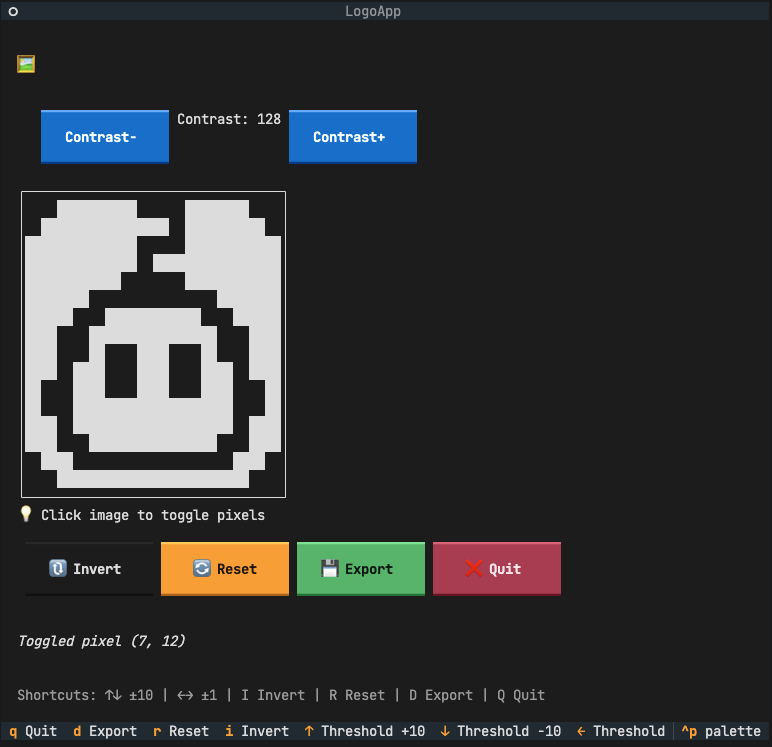
NanoKVM supports custom logo display, which can be shown simultaneously on the OLED screen and the Web management interface. The OLED screen displays low-resolution monochrome binary images, while the Web interface displays high-resolution color images.
Step 1: Generate Logo File
- Download the Logo Generation Python Script
- Install dependencies:
pip install Pillow numpy textual - Prepare a logo image that is close to square and obtain its file path
- Execute the script to generate the logo file:
python logo_generator.py /path/to/your_logo.png - Select the display language (currently only Chinese and English are supported)
- The terminal interface will display the OLED simulation effect. Adjust the contrast to achieve the desired display effect
- Fine-tune: Click "Invert" to generate a white-background logo, or click "Pixel" to control individual pixel states
- Click the "Export" button to generate
logo.binandlogo.icofiles in the current directory; click "Exit" after completion
Step 2: Upload Logo File
- Upload the
logo.binandlogo.icofiles to the/bootdirectory of NanoKVM:- Using SCP command:
The default login password isscp logo.bin logo.ico root@xxx.xxx.xxx.xxx:/bootroot. If you have modified the Web management interface password, please use the modified password for authentication. - Alternatively, via TF card: Copy the files to the
bootpartition of the TF card, and NanoKVM will automatically read them during boot
- Using SCP command:
- Reboot the NanoKVM device for the changes to take effect
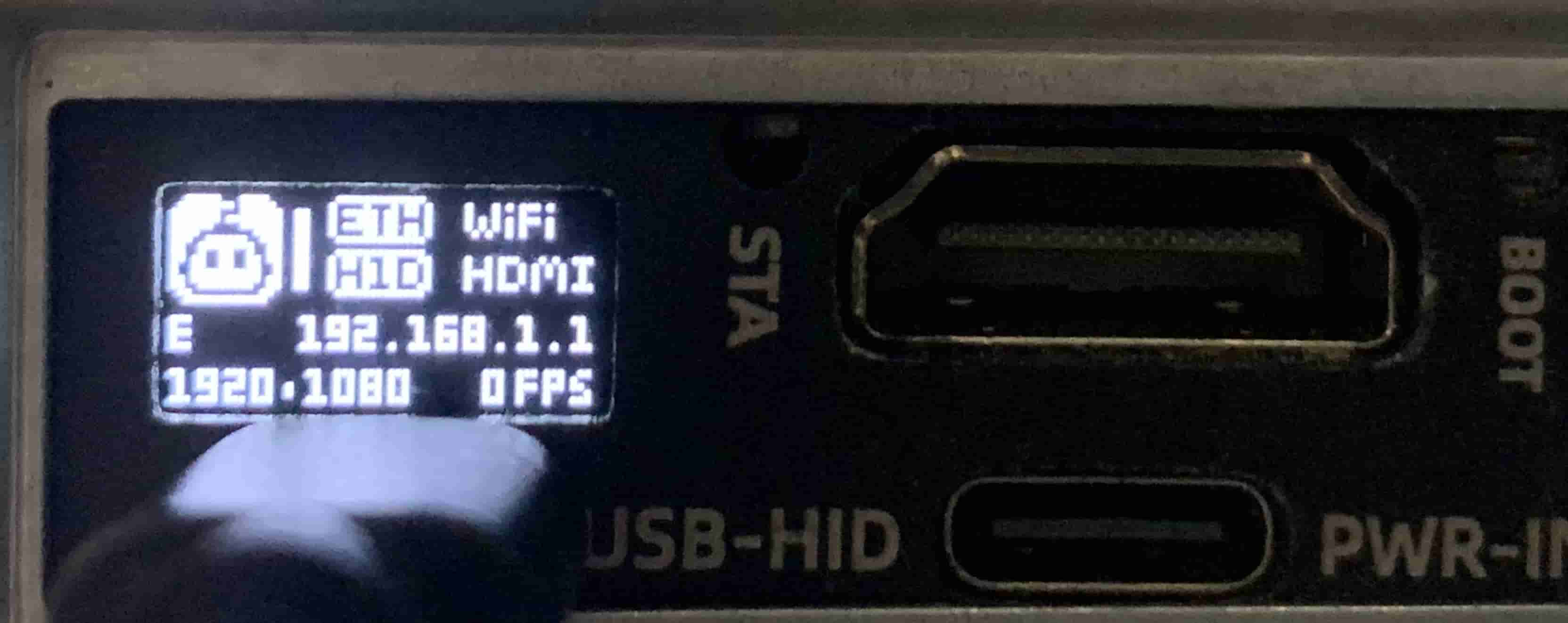
Modifying USB VID/PID
NanoKVM supports customizing the Vendor ID (VID) and Product ID (PID) of USB devices. You can modify these parameters by creating specific configuration files.
Procedure
Create configuration files:
- Modify VID: Create the
usb.vidfile in the/bootdirectory and write a 4-digit hexadecimal VID - Modify PID: Create the
usb.pidfile in the/bootdirectory and write a 4-digit hexadecimal PID
There are two methods to create the files:
Method 1: Create via Web Terminal or SSH Login
Directly execute the following commands in the NanoKVM web terminal or after logging in via SSH:
echo "0x3346" > /boot/usb.vid
echo "0x1009" > /boot/usb.pid
Method 2: Create via TF Card
If the TF card is easily removable, insert it into your computer and create the
usb.vidandusb.pidfiles directly in thebootpartition, writing the corresponding values.- Modify VID: Create the
Reboot the NanoKVM device for the changes to take effect
Restore Default VID/PID: Delete the
/boot/usb.vidand/boot/usb.pidfiles, then reboot the device to restore the default VID/PID.
Verify Changes
After modification, you can verify the VID/PID changes using the lsusb command:
$ lsusb
Bus 003 Device 089: ID 3346:1009 sipeed NanoKVM
Note: After modifying the VID/PID, the host may require reinstallation of the driver. Ensure that you use legitimate VID/PID combinations to avoid conflicts with existing devices.
Obtaining Streaming Related Data
Streaming and image parameters are located in the /kvmapp/kvm folder.
HDMI Obtained Image Native Resolution
- Image Width:
/kvmapp/kvm/width - Image Height:
/kvmapp/kvm/height
Example: Check the current resolution in the terminal
echo "$(cat /kvmapp/kvm/width) * $(cat /kvmapp/kvm/height)"
Note: width/height is read-only and cannot be written to.
kvm_streamdynamically modifies vi parameters based on this data; manual modification will cause the vi subsystem to misinterpret the correct image. When either or both parameters are 0, it indicates the HDMI cable has been unplugged or the HDMI resolution is switching.
Stream Transmission Resolution
- Transmission Resolution:
/kvmapp/kvm/res- 0: Automatic, follows HDMI native resolution
- 480: Transmit at 640x480
- 600: Transmit at 800x600
- 720: Transmit at 1280x720
- 1080: Transmit at 1920x1080
Note: This parameter is readable and writable.
Example: Set kvm_stream to transmit at 1280x720 resolution in the terminal
echo 720 > /kvmapp/kvm/res
Stream Maximum Transmission Frame Rate
- Maximum Transmission Frame Rate:
/kvmapp/kvm/fps - Range: 0-60
Example: Limit kvm_stream to a maximum of 45 fps in the terminal
echo 45 > /kvmapp/kvm/fps
Stream Current Transmission Frame Rate
- Current Transmission Frame Rate:
/kvmapp/kvm/now_fps
Example: View current stream frame rate
cat /kvmapp/kvm/now_fps
Check Hardware Version
NanoKVM has different versions, and there are hardware differences between versions. Please refer to the [schematic diagram]. The boot script will detect hardware differences and save them in /etc/kvm/hw.
- alpha: Early access version NanoKVM Full
- beta: Official version NanoKVM Full and Lite
- pcie: NanoKVM PCIe
Network Related Configuration
/etc/kvm/server.yaml- For details, refer to WiKi -> KVM -> NanoKVM Cube -> Network
USB Status Retrieval
cat /sys/class/udc/4340000.usb/state
- configured: Connected
- not attached: Not connected
HDMI Status Retrieval
cat /kvmapp/kvm/state
- 1: HDMI Normal
- 0: HDMI Abnormal
ETH Status Retrieval
cat /sys/class/net/eth0/carrier
- 1: Ethernet Cable Connected
- 0: Ethernet Cable Disconnected (inaccurate)
WiFi Presence
The file /etc/kvm/wifi_exist indicates the presence of the WiFi module.
WiFi Status Retrieval
cat /kvmapp/kvm/wifi_state
- 0: WiFi exists but not connected
- 1: WiFi connected
Enable Watchdog (Real-time)
touch /etc/kvm/watchdog # Enable
rm /etc/kvm/watchdog    # Disable
Disable Ping Function
touch /etc/kvm/stop_ping # Disable
rm /etc/kvm/stop_ping    # Enable
USB HID Simulation Devices
- Initialization: NanoKVM uses USB Gadget to simulate USB HID devices, initializing keyboard, mouse, and touchscreen in the device boot script
/etc/init.d/S03usbdev.
Simulated Keyboard
- Device:
/dev/hidg0 - Message: 8 bytes
| 0x00 | 0x00 | 0xXX | 0x00 | 0x00 | 0x00 | 0x00 | 0x00 |
- The fourth byte represents the ordinary key value, e.g., F11: 0x44.
- After sending the key value, it must be released promptly.
Example: Pressing the F11 key
echo -ne \\x00\\x00\\x44\\x00\\x00\\x00\\x00\\x00 > /dev/hidg0   # Press F11 key
echo -ne \\x00\\x00\\x00\\x00\\x00\\x00\\x00\\x00 > /dev/hidg0   # Release
Simulated Mouse
- Device:
/dev/hidg1 - Message: 4 bytes
| b8 Button | s8 X-axis Relative Movement | s8 Y-axis Relative Movement | s8 Wheel |
Buttons
- Left button down: 0x01
- Right button down: 0x12 (compatible with multiple systems)
- Release: 0x00
Example: Clicking the left button
echo -ne \\x01\\x00\\x00\\x00 > /dev/hidg1  # Press left button
echo -ne \\x00\\x00\\x00\\x00 > /dev/hidg1  # Release
Movement (Relative Movement)
- X/Y axis relative movement is signed, where positive x moves right and positive y moves down.
Example: Move right by 5 units, up by 1 unit
echo -ne \\x00\\x05\\xff\\x00 > /dev/hidg1
Wheel
- The wheel is signed, where positive values move down.
Example: Move down by 1 unit
echo -ne \\x00\\x00\\x00\\x01 > /dev/hidg1
Simulated Touchscreen
- Device:
/dev/hidg2 - Message: 6 bytes
| Button | X-axis Absolute Position Low 8 bits | X-axis Absolute Position High 8 bits | Y-axis Absolute Position Low 8 bits | Y-axis Absolute Position High 8 bits | Wheel |
Buttons
- Left button down: 0x01
- Right button down: 0x10
- Release: 0x00
Example: Clicking the left button
echo -ne \\x01\\x00\\x00\\x00\\x00\\x00 > /dev/hidg2  # Press left button
echo -ne \\x00\\x00\\x00\\x00\\x00\\x00 > /dev/hidg2  # Release
Movement (Absolute Position)
- X/Y are unsigned numbers, with (0x0001, 0x0001) representing the top left corner and (0x7fff, 0x7fff) representing the bottom right corner.
Example: Move the mouse to the center of the screen
echo -ne \\x00\\xff\\x3f\\xff\\x3f\\x00 > /dev/hidg2
Wheel
- The wheel is signed, where positive values move down.
Example: Move down by 1 unit
echo -ne \\x00\\x00\\x00\\x00\\x00\\x01 > /dev/hidg2
IO
The ATX power control function is implemented through IO and the external KVM-B. The corresponding relationship between IO and functions is as follows:
Alpha version definition (including early NanoKVM-Cube)
| Function | Linux GPIO Number |
|---|---|
| PWR LED Input | 504 |
| PWR KEY Output | 503 |
| RST KEY Output | 507 |
Beta version definition (including later NanoKVM-Cube and all NanoKVM-PCIe)
| Function | Linux GPIO Number |
|---|---|
| PWR LED Input | 504 |
| PWR KEY Output | 503 |
| RST KEY Output | 505 |
Read LED status (using Beta as an example)
cat /sys/class/gpio/gpio504/value
# 0 -> LED on
# 1 -> LED off
Operate power button (using Beta as an example)
# Press down
echo 1 > /sys/class/gpio/gpio503/value

# Wait for 1 second
sleep 1

# Release
echo 0 > /sys/class/gpio/gpio503/value
Operate reset button (using Beta as an example)
# Press down
echo 1 > /sys/class/gpio/gpio505/value

# Wait for 1 second
sleep 1

# Release
echo 0 > /sys/class/gpio/gpio505/value
For other IO: Please refer to LicheeRV Nano GPIO for development.
Precautions
- Users should not place their own built programs in the
/kvmappdirectory, as any updates will reset all contents within the folder. - Simulated keyboard and mouse operations may conflict with operations on the front-end page.